본문 바로가기
HRDI_AI/[인공지능] 노션 데이터베이스로 자료 정리하고 Google Apps Sc

Google Presentation 템플릿을 이용한 보고서 자동 생성

by Toddler_AD 2025. 12. 10.
  • 파일이 만들어질 구글 드라이브 폴더 생성


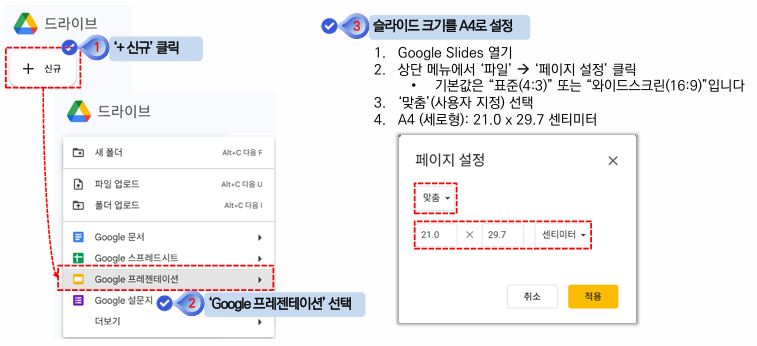
  • 구글 드라이브에 새 프레젠테이션 추가


  • 템플릿 작성


  • 새 Google Apps Script 추가하기


  • 프로젝트 구조 및 설정파일(Config.gs)

const NOTION_API_KEY = 'ntn_481631440693PrRe0g0Pg.......';
const NOTION_DATASOURCE_ID = '2c5b36bf-4185-812.......'; 
const NOTION_DATABASE_ID = '2c5b36bf41858.......';
const DRIVE_FOLDER_ID = '1Mn_D7y2vXfi6jK.......';
const SLIDE_TEMPLATE_ID = '1H_PsvGv14H9ljBEhnZ5F.........';
const SHEET_TEMPLATE_ID = '1SCr3vo_vlEaUecrNiE0JTcZ........';
const NOTION_VERSION = '2025-09-03'


  • 노션 데이터 가져오기 - Code.gs

function main() {
  Logger.log(getDatabaseTitle());
  notionData = getNotionData();
  notionData.forEach((item, index) => {
    Logger.log(`${item.no}, ${item.name}, ${item.teamName}, ${item.topic}, ${item.sum}, ${item.opinion}`);
  });
  createSlideReport(notionData);
  createSheetReport(notionData);
}

function getNotionData() {
	const url = `https://api.notion.com/v1/data_sources/${NOTION_DATASOURCE_ID}/query`;
	const payload = { // 필요한 경우 필터링 및 정렬 조건 추가
		sorts: [
			{
				property: 'No',
				direction: 'ascending'
			}
		]
	}
	const options = {
		'method': 'post',
		'headers': {
			'Authorization': `Bearer ${NOTION_API_KEY}`,
			'Notion-Version': NOTION_VERSION, // Notion API 버전
			'Content-Type': 'application/json'
		},
		'payload': JSON.stringify(payload)
	};

	try {
		const response = UrlFetchApp.fetch(url, options);
		const data = JSON.parse(response.getContentText());
		return data.results.map(page => ({
      no: page.properties['No']?.title[0]?.text.content ?? '',
      name: page.properties['이름']?.rich_text[0]?.text.content ?? '',
      teamName: page.properties['팀명']?.select?.name ?? '',
      topic: page.properties['주제']?.rich_text[0]?.text.content ?? '',
      date: page.properties['평가일'].date?.start,
      score1: page.properties['창의성']?.number ?? 0,
      score2: page.properties['효과성']?.number ?? 0,
      score3: page.properties['구현완결성']?.number ?? 0,
      score4: page.properties['발표능력']?.number ?? 0,
      sum: page.properties['합계']?.formula?.number ?? 0,
      opinion: page.properties['평가의견'].rich_text[0]?.text.content ?? '',
    }))
	} catch (e) {
		Logger.log('노션 데이터 가져오기 오류: ' + e.toString());
		return null;
	}
}

function getDatabaseTitle() {
  const url = `https://api.notion.com/v1/databases/${NOTION_DATABASE_ID}`;
  const response = UrlFetchApp.fetch(url, {
    method: 'get',
    headers: {
      'Authorization': `Bearer ${NOTION_API_KEY}`,
      'Notion-Version': NOTION_VERSION
    }
  });

  const json = JSON.parse(response.getContentText());
  const title = json.title?.[0]?.plain_text ?? '프로젝트_평가표';
  // Logger.log(json);
  return title;
}


  • 프레젠테이션 템플릿으로 보고서 생성하기 - SlideReport.gs

function createSlideReport(notionData) {
  if (!notionData || notionData.length === 0) {
    Logger.log('노션 데이터가 없습니다.');
    return;
  }

  // 템플릿 복사 → 최종 결과 슬라이드
  const templateFile = DriveApp.getFileById(SLIDE_TEMPLATE_ID);
  const newFile = templateFile.makeCopy("심사평가표 결과_Slide");
  const presentation = SlidesApp.openById(newFile.getId());

  // 템플릿의 첫 번째 슬라이드를 기준 슬라이드로 사용
  const templateSlide = presentation.getSlides()[0];

  notionData.reverse().forEach((item, index) => {
    // 템플릿 슬라이드를 복제해서 뒤에 붙임
    let slide = templateSlide.duplicate(); // 맨 끝에 추가

    // 플레이스홀더 대체
    slide.replaceAllText('{{no}}', item.no);
    slide.replaceAllText('{{이름}}', item.name);
    slide.replaceAllText('{{팀명}}', item.teamName);
    slide.replaceAllText('{{평가일}}', item.date);
    slide.replaceAllText('{{창의성}}', item.score1);
    slide.replaceAllText('{{효과성}}', item.score2);
    slide.replaceAllText('{{구현완결성}}', item.score3);
    slide.replaceAllText('{{발표능력}}', item.score4);
    slide.replaceAllText('{{합계}}', item.sum);
    slide.replaceAllText('{{평가의견}}', item.opinion);
  });

  // 마지막에 원본 템플릿 슬라이드 삭제 (안 그러면 그대로 남음)
  templateSlide.remove();

  presentation.saveAndClose();
  Logger.log("Google 슬라이드 보고서가 생성되었습니다: " + newFile.getUrl());
  // return newFile.getUrl();
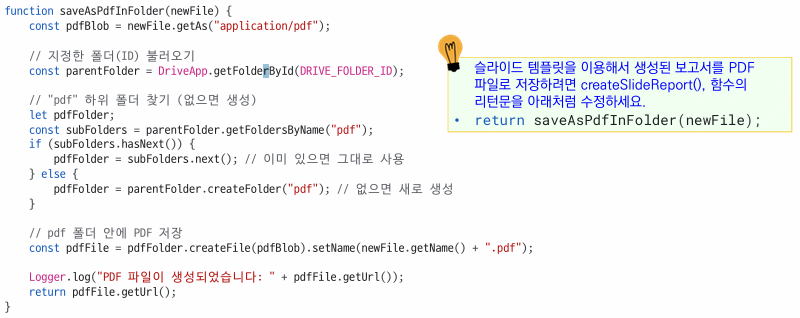
  return saveAsPdfInFolder(newFile)
}


  • 참고) replacement 를 이용한 데이터 매핑


  • PDF로 저장하기 - PdfReport.gs

function saveAsPdfInFolder(newFile) {
    const pdfBlob = newFile.getAs("application/pdf");

    // 지정한 폴더(ID) 불러오기
    const parentFolder = DriveApp.getFolderById(DRIVE_FOLDER_ID);

    // "pdf" 하위 폴더 찾기 (없으면 생성)
    let pdfFolder;
    const subFolders = parentFolder.getFoldersByName("pdf");
    if (subFolders.hasNext()) {
        pdfFolder = subFolders.next(); // 이미 있으면 그대로 사용
    } else {
        pdfFolder = parentFolder.createFolder("pdf"); // 없으면 새로 생성
    }

    // pdf 폴더 안에 PDF 저장
    const pdfFile = pdfFolder.createFile(pdfBlob).setName(newFile.getName() + ".pdf");

    Logger.log("PDF 파일이 생성되었습니다: " + pdfFile.getUrl());
    return pdfFile.getUrl();
}



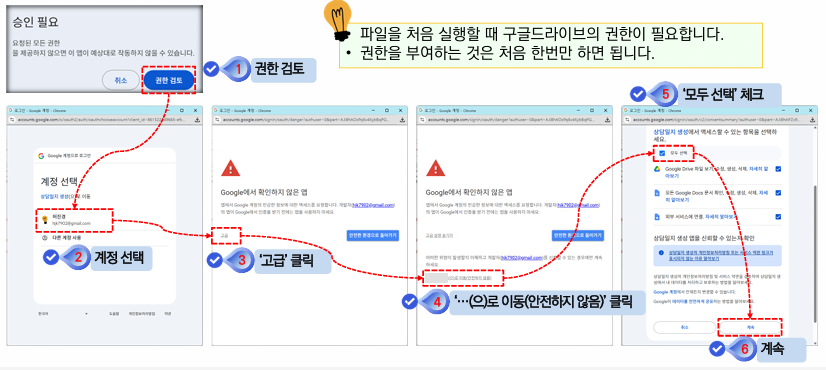
  • 스크립트 실행 권한 설정


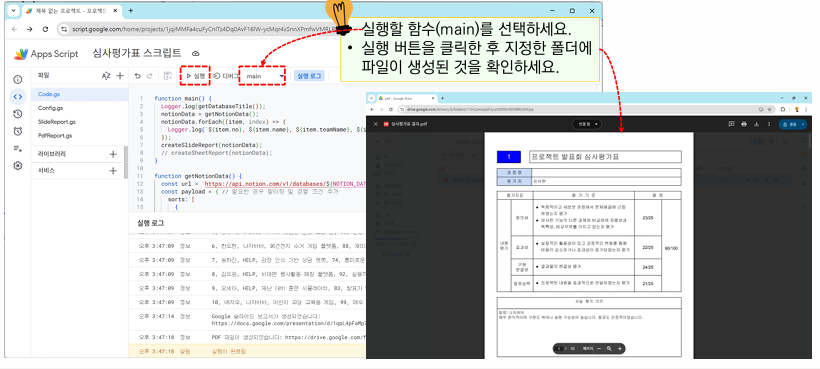
  • 실행 후 결과 확인